Showing posts with label Tutorials. Show all posts

Monday, January 29, 2007

How to install Adobe Flash Player 9 for Mozilla Firefox and Opera

It is not so hard :)

First download the installer - here. Download and uncompress the archive. Open the console and navigate to the just created directory. Then type the following command;

./flashplayer-installer
The instaler will ask you to close all your running browsers. Close them. The next step is to select the installation folder, and install the player. By default this folder is the firefox plugins folder:

/home/username/.mozilla/plugins

To get Opera use the new flash player open Opera. Select Tools -> Preferences -> Advanced -> Plug-in Options -> Change Path
Then select the directory, where you just installed the flash player, select Ok and press the Find New ... button from the Plug-ins window. Thats all :)

Enjoy your flash 9 player for linux.

Friday, January 05, 2007

Transforming Ubuntu to Kubuntu

If you are tired of Gnome and want to have KDE desktop this tutorial will help you to install it. If you want clean install download the Kubuntu CDs and install Kubuntu but if you have already installed Ubuntu and just want KDE you have come to the right place :)

The easy way !

The easy way is to install the KDE package from the terminal shell. Open terminal and type the following:

sudo apt-get install kubuntu-desktop

Enter your password and just wait. The download should begin shortly, after the package is downloaded choose your default login manager (kdm for KDE and gdm for Gnome).


The other way!

The othe way is to install KDE with the help of the Synaptic package manager. Open Synaptic Package Manager from the Administration menu. Type your password and then click the search button. In the new window type kubuntu-desktop and hit Search. Synaptic will find only one package, right click on it and select "Mark for Installation". New window will appear with the list of the packages, which are going to be downloaded and installed. Click Apply and the downloading process will begin. After they are downloaded they will be prepared and installed. Through the installation a new window will pop up asking you to choose the default login manager. KDM is for KDE and GDM is the gnome display manager. When the Changes Applied message appears, you can safely click Close. Now you have to logout and reboot your computer. When the login manager comes back up, you have to manually select KDE as your desktop environment; otherwise you are logged in to the last environment you were using. When the login manager shows up click the Options button and select Session from the menu. A new window will be opened. Select KDE and hit the Change Sesion button. Enter your login details and anjoy the new KDE desktop :)

Friday, October 27, 2006

How to upgrade Ubuntu Dapper to Edgy 6.10

Here is my tutorial how to upgrade Ubuntu Dapper 6.06 to Ubuntu Edgy 6.10:
First open your terminal and type this:

gksudo "update-manager -c"

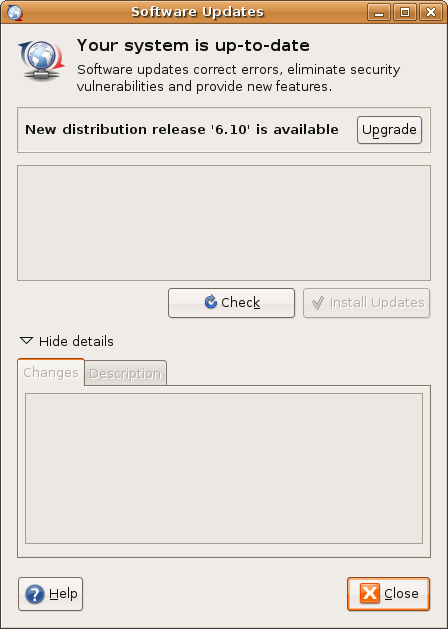
This will open the Update Manager main window, as shown on the picture:
It will show you that new distribution release is available. Click on the "Upgrade" button and new window will be opened:
Click on "Upgrade" again and the updater will download the upgrade tool
and run it after that
The updater will show detailed information about that which packages are going to be upgraded/removed/added:
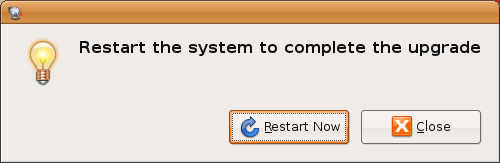
Click "Start Upgrade" and let the updater do its work. After everything is done you have to restart your system:
Thats all :) If you have any problems after the upgrade you can find useful information here.
If you have any suggestions just post a comment :)

Sunday, October 22, 2006

Tutorial: How to setup webserver with Ubuntu Linux (LAMP)

Here is how i did it. First lets install the Apache 2 Webserver. Open the terminal and type this:
sudo apt-get install apache2
Now the webserver`s root directory is /var/www/

If you dont have write access to /var/www use the CHOWN command. Open your web browser and type the following adress: http://localhost if you want to test if the server is installed correctly.
The next step is PHP5. Type the following in your terminal:
sudo apt-get install php5
sudo apt-get install libapache2-mod-php5
sudo /etc/init.d/apache2 restart
This installs PHP5 and restarts the apache webserver. If you want to test the new PHP installation
gksudo gedit /var/www/phptest1.php
Insert this code into the new file
Save the file and open it with your browser. You will see detailed information about your PHP installation. Naw we are going to install MySQL database server.
sudo apt-get install apache2
sudo apt-get install libapache2-mod-auth-mysql
sudo apt-get install php5-mysql
sudo apt-get install phpmyadmin
Now we have to edit the apache/php conf
gksudo gedit /etc/php5/apache2/php.ini

You have to uncomment this line
extension=mysql.so
Save the file and restart the server
sudo /etc/init.d/apache2 restart
Thats all. Enjoy your new webserver :)

Tuesday, October 17, 2006

Tutorial: How to Install Ubuntu Linux

If you are new to linux and you want to try it this video tutorial is for you. Ubuntu linux is user friendly distribution which is designed to be as simple as posible. Just follow these 6 easy steps and you will have a new shiny desctop OS :)

-watch the video tutorial
-download Ubuntu linux